The Online Community is packed full of useful information and relatable experiences. Over the years, tens of thousands of members have shared their thoughts, worries, and words of comfort with each other. With such a large amount of support content available, finding the discussions most relevant to you requires the use of a powerful search function.
On every page of the Online Community, in the top-left corner you will see the ‘Search’ button depicted by a magnifying glass icon.
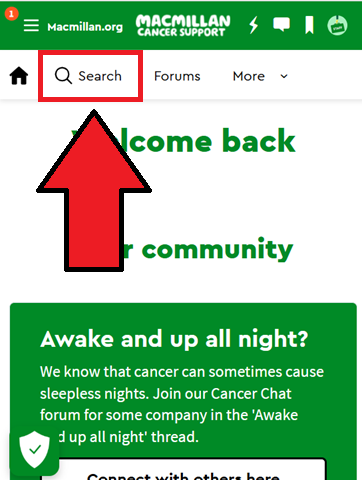
Tap on the search button to enter search mode. Tap inside the search box and type in a term you’d like to search the Online Community for. Tap the magnifying glass button to begin the search.
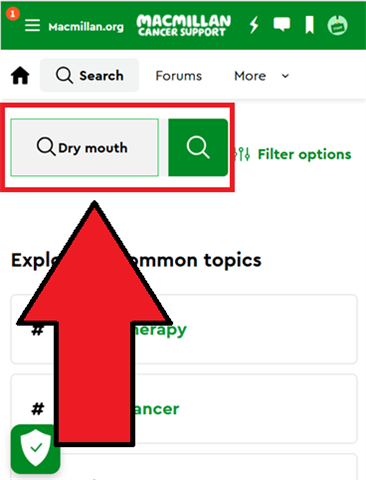
After tapping Search, you will find yourself on the results page. You can filter the results by content type using the heading tabs in the middle of the page.
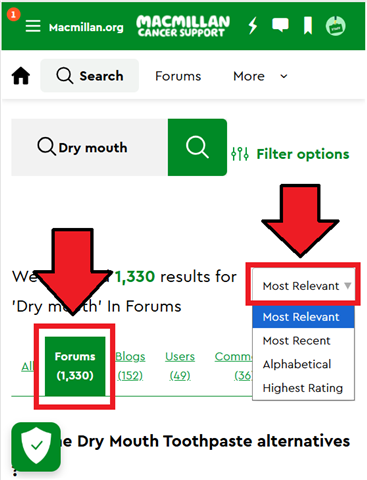
TIP: Start with the ‘Forums’ option in order to look exclusively for discussions on the forums. You can also change the order the results are shown in by changing the option displayed in the drop-down box to the right.
If you would like to narrow your search down to a specific forum, you can tap the ‘Filter options’ button to the right of the search box and then scroll down the list of suggested forum groups to search within.
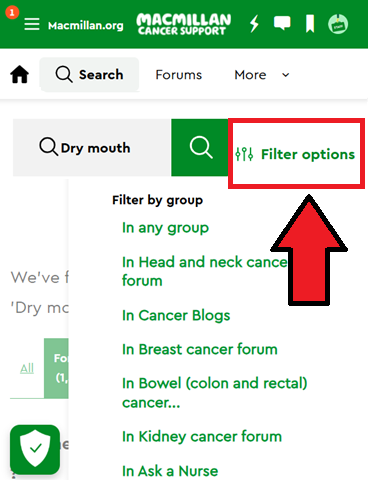
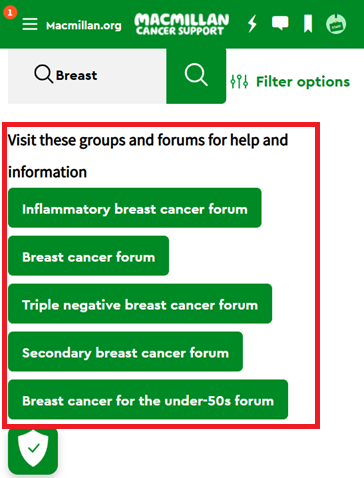
Some search terms may be particularly common on specific forums. When the search function sees you have used a search term like this, it will suggest a number of forum groups that you may find helpful to visit. These suggested groups will appear underneath the search box, just above where the main search results are shown. Just tap on one of the options if you’d like to explore.
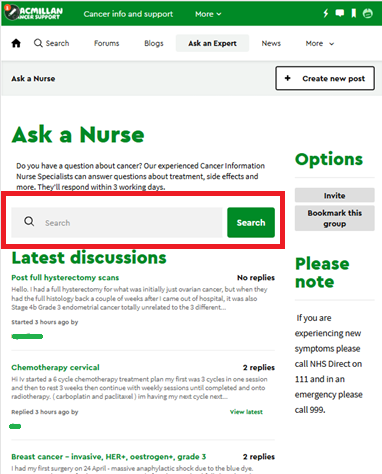
The Ask an Expert group contains two unique forums: Ask a Nurse, and Ask an Information and Support Adviser. While Online Community members can post their questions in these forums, only Macmillan staff can provide replies. This makes them an excellent source of previously-asked questions, along with trusted answers.
When you visit either the ‘Ask a Nurse’ or ‘Ask an Information and Support Advisor’ forum, you will see a special search bar just above where the ‘Latest discussions’ area is.
You can search for any words that are relevant to your question. For example, you might want to search for the word ‘cervix’ if you are concerned about symptoms of cervical cancer. Once the search is complete, you will see a list of previous discussions that feature your search words, all displayed underneath the search box.
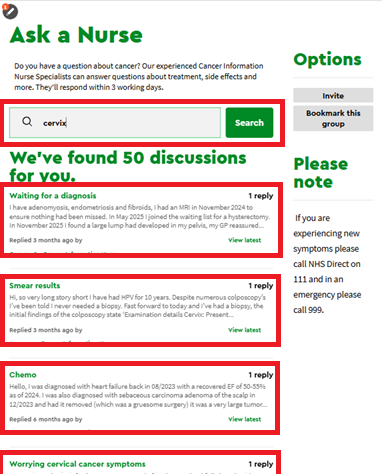
Simply tap on any of the discussion titles that seem most relevant to your question, and you will be taken to view the question, along with the answer from a Macmillan member of staff.
You can go back to the results page by pressing the back button on your web browser, where you can always start a new search instead.
If you don’t find what you’re looking for in the results, don’t forget you can always ask your very own question by starting a new discussion thread in the relevant Ask an Expert forum yourself.
NOTE: You will also see this type of ‘conversation search’ tool if you visit the main Cancer experience forums page, or the main Cancer types forums page.
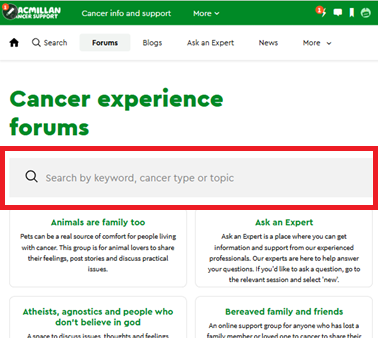
It works in much the same way, only the results you are shown are all discussions featuring other Online Community members’ replies, not just Macmillan staff.
We have big plans for making further improvements to the search function this year, so make sure you check our Community News blog regularly for updates. Some are due to arrive later this summer, others by the end of the year. Each update will make finding the content you’re interested in much more accessible.
If you have any questions or feedback about anything mentioned in this blog, please contact the Online Community Team directly by sending an email to community@macmillan.org.uk.